|

Pine Color: Distinctive Blue
You will need to set the following color palette for your terminal,
in order to see these colors in Pine color settings. You will want to
set only8 or all 16 colors depending on how many colors you will use in
Pine.
Alternatively, if you use KDE, you might just find it simpler to put the
schema file
distinctiveblue.schema in your
"$HOME/.kde/share/apps/konsole" directory and then just select the scheme
for konsole through its Settings->Schema menu.
Color Palette for your Terminal :
0 - Foreground Color - #FFFFFF


1 - Background Color - #31659C


2 - Color 0	(black)  - #000000


3 - Color 1	(red)    - #EE0000


4 - Color 2	(green)  - #00EC00


5 - Color 3	(yellow) - #F1F100


6 - Color 4	(blue)   - #31659C


7 - Color 5	(magenta)- #F200F2


8 - Color 6	(cyan)   - #00EBEB


9 - Color 7	(white)  - #FFFFFF


10 - Foreground Intensive Color       - #4D4D4D


11 - Background Intensive Color       - #FFFFFF


12 - Color 0 Intensive (gray)         - #ABABAB


13 - Color 1 Intensive (light red)    - #FF0000


14 - Color 2 Intensive (light green)  - #00FF00


15 - Color 3 Intensive (light yellow) - #FFFF00


16 - Color 4 Intensive (light blue)   - #04B8FF


17 - Color 5 Intensive (light magenta)- #FF00FF


18 - Color 6 Intensive (light cyan)   - #00FFFF


19 - Color 7 Intensive (white)        - #FFFFFF
Change pine color settings (using keystrokes - MSK) to the following :
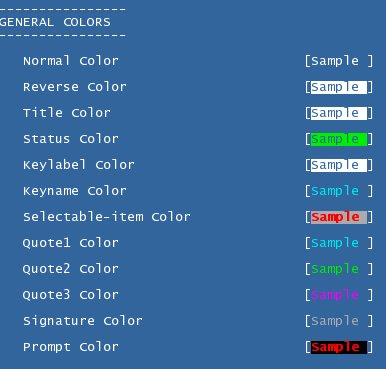
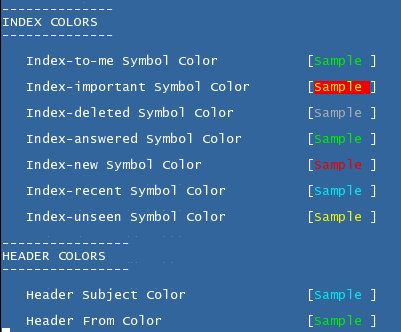
or put the following in .pinerc :
# Controls display of color


color-style=force-ansi-16color


# Choose: black,blue,green,cyan,red,magenta,yellow,or white.


normal-foreground-color=white


normal-background-color=blue


reverse-foreground-color=blue


reverse-background-color=white


title-foreground-color=blue


title-background-color=white


status-foreground-color=blue


status-background-color=green


keylabel-foreground-color=blue


keylabel-background-color=white


keyname-foreground-color=cyan


keyname-background-color=blue


selectable-item-foreground-color=color009


selectable-item-background-color=color008


quote1-foreground-color=cyan


quote1-background-color=blue


quote2-foreground-color=green


quote2-background-color=blue


quote3-foreground-color=magenta


quote3-background-color=blue


prompt-foreground-color=color009


prompt-background-color=black


index-to-me-foreground-color=green


index-to-me-background-color=blue


index-important-foreground-color=yellow


index-important-background-color=red


index-deleted-foreground-color=color008


index-deleted-background-color=blue


index-answered-foreground-color=green


index-answered-background-color=blue


index-new-foreground-color=red


index-new-background-color=blue


index-recent-foreground-color=cyan


index-recent-background-color=blue


index-unseen-foreground-color=yellow


index-unseen-background-color=blue


# When viewing messages, these are the header colors


viewer-hdr-colors=/HDR=Subject/FG=cyan/BG=blue,
    /HDR=From/FG=green/BG=blue
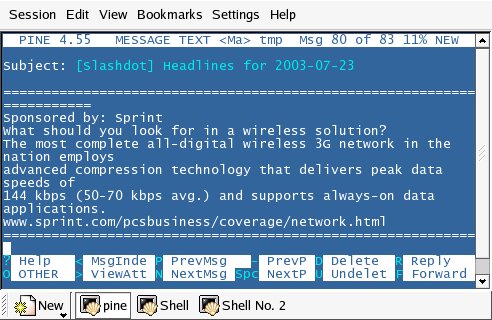
And see the result :
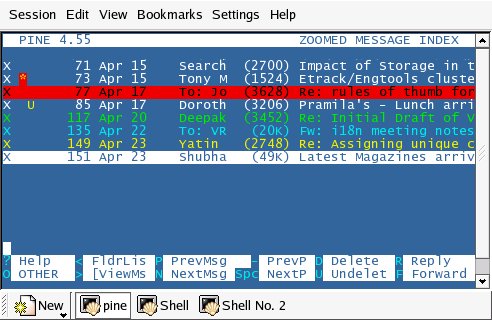
[Note that part of the colors seen here are due to Pine's Index Colors (keystrokes - MSRI)]
and
If you use vi(m) as external editor for Pine, then you will want to have
the following in your vimrc. What I do is put these in a separate .vimrc,
like .vimrc_for_pine and invoke vi to use this one, when invoked from pine.
For this, have the setting in pine config (keystrokes - MSC) as
editor = /usr/bin/vim -u /home/USER/.vimrcforpine
The ".vimrc_for_pine" should look like
set tabstop=4


set ai


set et


set tw=60


: e!pell %


syntax on


colorscheme distinctiveblue.pine


startinsert
and your "$HOME/.vim/colors" directory (create one if it doesnt exist) should contain the vim colorscheme file distinctiveblue.pine.vim
You will notice other useful settings for email editing in there too.
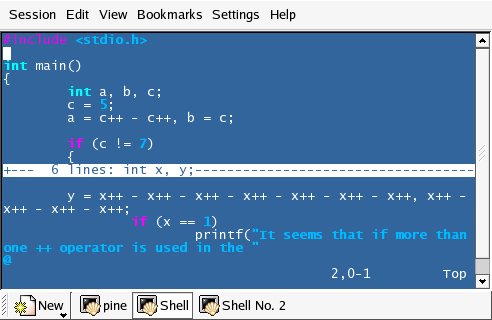
If you do any coding, you will want to use the following syntax colors in
your default .vimrc. Assuming you use the same terminal color settings
throughout your desktop, they would in fact be necessary.
set tabstop=4


set ai


: e!pell %


set foldmethod=indent


set foldlevel=0


syntax on


colorscheme distinctiveblue
and your "$HOME/.vim/colors" directory (create one if it doesnt exist) should contain the vim colorscheme file distinctiveblue.vim
With this, this is what you will see :
|